
Flex Online Undergraduate Program
You work during the day. You have family obligations. You have a packed schedule. Our online bachelor’s degree offerings have all the support of our traditional undergraduate program but allow you the freedom to go at your own pace. Take in lectures, participate in communities of practice, complete classwork at night, on weekends or whenever you can fit them into your day.
Tailored for working adults, Chaminade’s Flex Program allows you to move at your own pace. New courses start monthly. Finish a class and advance to the next one quickly. If you need additional time to finish, take it!
Complete Your Degree
Complete your bachelor’s degree without ever setting foot in a classroom. Our online undergraduate programs feature all the academic rigor of our on-campus programs. The best part? You’ll have access to all of our faculty and academic support to ensure you’re set up for success. You’re not alone, we’ll be here to help you along the way.
Chaminade News
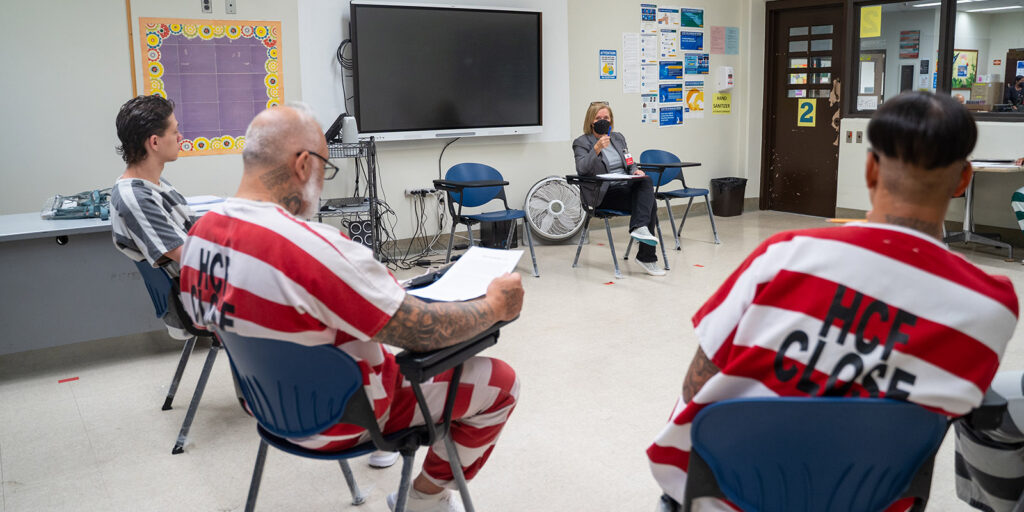
Higher Education in Prison
Program helps with reintegration into community Esther Matthews is Chaminade’s new Director of Prison Education program. It’s personal for Esther…

Matching Tuition
Matching the University of Hawaii at Manoa’s tuition rates, four-year tuition guarantee demonstrates Chaminade’s commitment to supporting students on their…

Lillie Flynn BS ’21
As an Initiatives Lead in the Technical Operations Department at Hawaiian Airlines, Lillie Flynn ’21 frequently utilizes the data visualization…

Connor Flynn BS ’21
Connor Flynn’s degree in environmental science introduced him to the tremendous challenges and opportunities regarding the health and stewardship of…